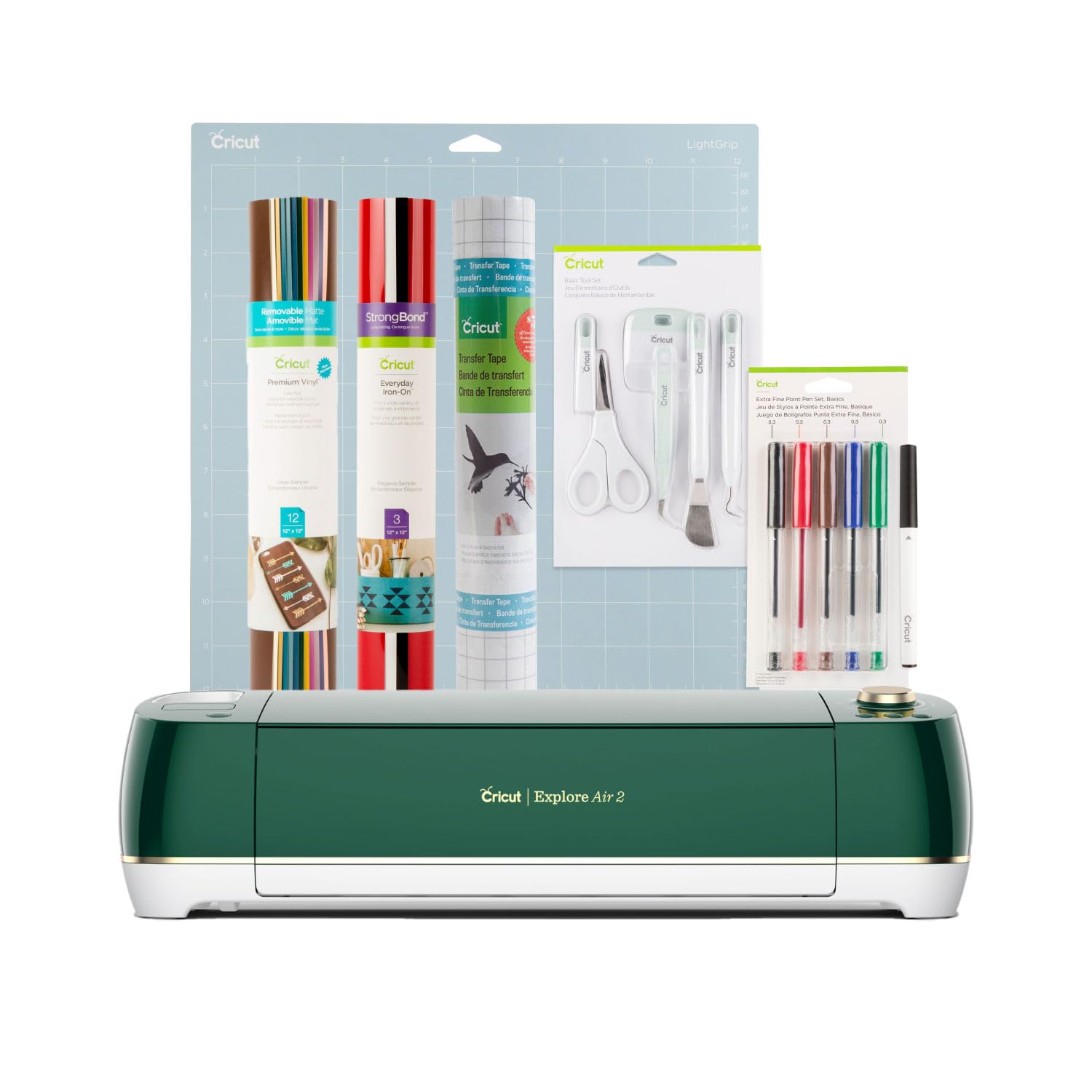
The Cricut Explore Air 2 is praised for its versatility in cutting over 100 materials including vinyl, leather, and adhesive foils, with a premium fine point blade for detailed work. Reviewers highlight the intuitive Cricut Design Space software with thousands of free projects and templates, and note that the machine is ready to use in about 20 minutes with included materials. However, some users find the setup overwhelming due to the vast number of options and features, and report a steep learning curve despite helpful tutorials. This machine appeals to both novice and professional crafters seeking personalized creations for t-shirts, home decor, and more.
Full review
Bluetooth connectivity built-in
The Cricut Explore Air 2 stands out from its predecessor with built-in Bluetooth connectivity, eliminating the need for a USB cord during operation. This feature allows users to position the machine anywhere in their workspace while working from a computer, tablet, or phone, offering greater flexibility and convenience. The machine's wireless capability was noted by reviewers as a significant upgrade, particularly for those who prefer to keep their workspace organized and uncluttered. This improvement in connectivity makes the Explore Air 2 more user-friendly for makers who want to work efficiently without being tethered to their computer. The ability to operate the machine wirelessly also means that users can continue working on their projects while the cutting process is underway, maximizing productivity and minimizing interruptions.
Speed improvements in cutting operations
The Cricut Explore Air 2 introduces a Fast Mode that can cut up to 2x faster than the original Explore model, according to one reviewer who conducted direct comparisons. In a test involving intricate vinyl cutting, the new machine finished a small 2.5-inch lacey doily cut approximately 25% faster than the original Explore, shaving 58 seconds off the cutting time. When using the pen for drawing, the Explore Air 2 completed the task in 3 minutes and 32 seconds compared to 5 minutes and 18 seconds for the original, representing a two-minute difference. During a glitter iron-on cutting test, the new model beat the original by 2 minutes and 11 seconds, cutting in 4 minutes and 22 seconds versus 6 minutes and 33 seconds. These speed improvements are particularly valuable for users who make multiple cuts or work on projects with tight deadlines, as they significantly reduce overall project completion time. The faster cutting speeds also contribute to better cut quality, as the machine produces smoother cuts with fewer spots lifted off the backing material, according to one reviewer who conducted a detailed comparison test.
Design Space interface challenges
Despite the machine's technological advances, the Cricut Design Space software presents notable usability challenges that frustrate many users. A reviewer with graphic design experience found the program difficult to navigate, particularly when compared to professional software like Adobe Illustrator. The interface makes it complicated to group and ungroup elements, requiring users to attach items before being able to detach them without detaching the entire group. Scaling and aligning elements in Design Space also proves problematic, requiring users to know exact dimensions and manually line up elements precisely. The software's limitations become especially apparent when users attempt to create complex projects or when they need to make adjustments to existing designs. The learning curve for Design Space is steep, and many users report spending considerable time troubleshooting basic functions. One reviewer noted that the program's interface is not intuitive for beginners, and even experienced designers find it frustrating to work with. The software's lack of advanced editing tools and its clunky workflow make it less appealing to users who expect more sophisticated design capabilities from their digital tools.
Material handling and alignment issues
Users consistently report difficulties with material alignment and handling, which can significantly impact project outcomes. When printing materials for cutting, users must ensure paper is fed into the printer exactly the same way to avoid misalignment issues that affect cutting accuracy. Some users have experienced crooked printing, which requires salvaging efforts by adjusting paper placement on the mat. The machine's alignment system also presents challenges during cutting operations, as users must determine whether to push the mat all the way to the left, right, or try to center it between the edge aligners. This uncertainty can lead to cuts that are off by even a slight millimeter, frustrating users who have spent time in other programs to align elements precisely. The alignment process becomes particularly problematic when working with intricate designs or when attempting to achieve professional-quality results. One reviewer specifically noted that the machine's edge aligners leave room for user interpretation, creating confusion about optimal positioning and resulting in inconsistent cutting outcomes. These alignment issues require additional time and patience from users, potentially offsetting some of the time savings gained from faster cutting speeds.
Blade maintenance and pressure settings
The Cricut Explore Air 2 requires careful attention to blade maintenance and pressure settings, which can be challenging for users unfamiliar with the machine's mechanics. Users report that blade sharpness significantly affects cutting performance, with dull blades causing issues that are difficult to diagnose. One reviewer recommended using aluminum foil to sharpen blades by poking it multiple times, indicating that blade maintenance is a common concern among users. The machine's preset pressure settings are helpful but often insufficient when blade sharpness varies, making it difficult for users to determine the correct pressure for different materials. Users must learn to adjust pressure settings based on blade condition and material type, which adds complexity to the cutting process. The pressure adjustment system, while designed to be user-friendly, often requires trial and error to achieve optimal results. This aspect of machine operation can be particularly frustrating for beginners who expect the machine to automatically handle all cutting variables without user intervention. The need for regular blade maintenance and pressure adjustments adds to the overall learning curve and can impact project efficiency.
Noise level concerns
The Cricut Explore Air 2 generates considerable noise during operation, which can be disruptive to users working in shared spaces or those who prefer quiet environments. One reviewer specifically noted that the machine's sound level is unpleasant when trying to watch Netflix or listen to music while cutting. The noise level is described as one of the most frustrating aspects of using the machine, particularly for users who want to multitask or work in environments where quiet operation is preferred. The machine's noise level is considered typical for cutting machines, but it's still a significant drawback for users who value quiet operation. The sound can be particularly distracting when users are trying to focus on other activities while the machine is in operation. This noise issue is not unique to the Explore Air 2 but represents a consistent complaint across multiple user experiences, indicating it's a fundamental characteristic of the machine's operation rather than a specific design flaw.
Material compatibility and limitations
While the Cricut Explore Air 2 can cut 100+ materials including vinyl, iron-on, card stock, faux leather, and bonded fabric, it has notable limitations compared to more advanced models like the Cricut Maker. The machine cannot cut fabrics effectively, which limits its utility for users who want to create items like clothing or fabric-based projects. Users must purchase compatible materials and tools separately, which adds to the overall cost of using the machine. The machine's inability to handle thicker materials or perform more advanced cutting techniques restricts its versatility compared to higher-end models. Users who want to expand their crafting capabilities beyond basic materials will need to upgrade to more advanced machines like the Cricut Maker. The machine's compatibility with specific tools is also limited, requiring users to purchase additional accessories for certain projects, which can be costly and inconvenient for those on a budget.
Strengths
- +Cuts over 100 types of materials including cardstock, vinyl, leather, and adhesive foils
- +Includes a premium fine point blade for detailed cutting tasks
- +Intuitive Cricut Design Space software with thousands of free projects and templates
- +Ready to use in about 20 minutes out of the box with included material for first project
Watch-outs
- −Setup can be overwhelming for beginners due to the vast number of options and features
- −Some users report difficulty with the learning curve despite helpful tutorials
How it compares
The Cricut Explore Air 2 is more intuitive than the Maker 4 and Maker 3, but it lacks the advanced cutting capabilities and material range of those models. Unlike the Explore 5, it's bulkier and doesn't offer the same compact design, though it's more beginner-friendly.
Rating sources
“My initial impression upon taking my new Cricut Explore Air 2, Cobalt out of the box was that it is so pretty! The Cobalt version is only available at JOANN and well worth the visit.”
“However, the machine itself is unbelievably difficult for no reason. Some issues, yes I admit, are on my end, but I know that when I double check my side and it keeps repeating the same issues, the machine must have some user difficulty.”
“I was over the moon, and today, I get to share all of my amazing findings with you.”
“I rarely use the Explorer Air 2, but this machine is very popular in the Cricut community.”
Our 3.8 score is the average of the 4 scored reviews above; 3 more reviewed it without printing a score and are not in the average. Ratings marked * were derived from the reviewer’s written analysis or video transcript — the publisher didn’t print an explicit numeric score, so we inferred one from their own words. Click through to verify. More about methodology.